
Practical guide · 7 min read
Loyalty card in Apple Wallet and Google Wallet: how it works and how to set one up
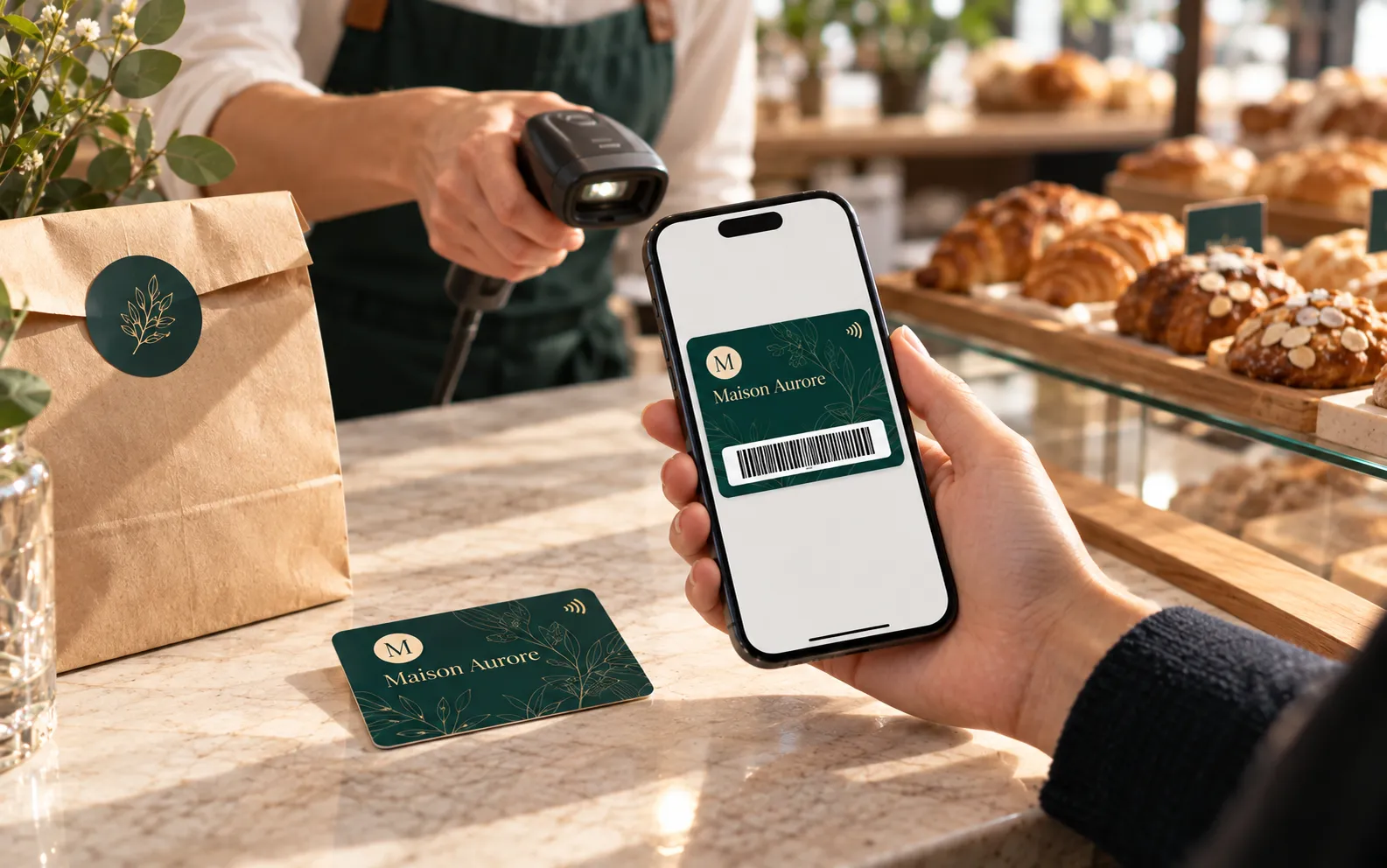
A loyalty card in Apple Wallet and Google Wallet is a digital loyalty card that the customer adds to their phone from a link or a QR code, and that sits alongside their payment cards, in the same format. It carries a unique number and a code that your till reads just like on a PVC card, and it is updated remotely. Here is how it works, then how to set one up.
1. What is a loyalty card in Apple Wallet and Google Wallet?
A loyalty card in Apple Wallet or Google Wallet is a digital loyalty card kept in the phone's wallet, next to payment cards and tickets. It carries your logo, your colours, a unique number and a barcode or QR code.
The same principle applies to a membership card and to an access pass. At Lumacards, the product is called Wallet Cards: a pack of numbered cards, from 50 to 50,000, to give out at your own pace.
In brief
- The customer adds the card from a link or a QR code, with nothing to install.
- In the phone, the card keeps the format of a bank card.
- The till or a scanner reads its code: Code 128, EAN-13 or QR code.
- The design and the validity date are updated remotely.
2. How does a customer add the card to their phone?
They open a link or scan a sign-up QR code, then tap “Add to Apple Wallet” or “Add to Google Wallet”.
You receive a single sign-up link and a single QR code for the whole pack: everyone who opens them receives the next available card. Put the QR code on the counter, print it on a poster, or drop the link into a booking confirmation or a start-of-season e-mail.
Would you rather decide who gets which card? Each card also has its own personal link and its own QR code.
3. How is the card read at the till or at the door?
The customer opens their card and you scan its code with your handheld scanner or reader: the till recognises the number, just as it does with a PVC card. The card identifies the customer; your till or your loyalty software counts the points, stamps and rewards, as it does today.
At the door of a club, the code is read with a handheld scanner or a tablet. Without a scanner, a visual check of the name, number and validity date is enough.
Before you order, check that your scanner reads a code displayed on a screen.
4. Code 128, EAN-13 or QR code: which one should you choose?
Choose the code your equipment already reads. You pick one of three when you order.
| Code | What it holds | Read by which equipment | Best suited to |
|---|---|---|---|
| Code 128 | Digits and letters, any length | Common handheld scanners and till readers | Retail loyalty, customer or membership numbers of any format |
| EAN-13 | 13 digits, like the barcode on products in a shop | Retail till scanners | A till set up for 13-digit cards, or PVC cards already issued in EAN-13 |
| QR code | Digits and letters, in a square | Image-based (2D) scanners, tablets, phones | Checks at the door of a club, an association or an event |
Two points to note. A single-line laser scanner does not read QR codes: you need an image-based scanner or a tablet. And EAN-13 is displayed as it is on Android and on up-to-date iPhones; on older iPhones, the same digits are displayed as a Code 128 barcode.
Our guide to barcode cards for business covers the till side in more depth.
5. How are the cards numbered, and do you need the cardholder's name?
There are two methods: a starting number, with the cards numbered in sequence, or your own numbers, uploaded from an Excel or CSV file. A starting number suits a new programme. The file is the right choice if you already have PVC cards or membership numbers: the card in the phone takes over the same numbers.
The cardholder name is optional. Each card already has its number and its code: you add or correct the name later in your dashboard, card by card or from a file.
6. What can you change once the card has been given out?
You change the design and the validity date from your dashboard; the change is applied remotely to the cards already installed. A new season: you change the validity date, and your members have nothing to redo. A member leaves or loses their phone: you deactivate that card, and the others do not change.
For each card, the dashboard shows its number, the name if one has been entered, and whether it is installed or still available. The list can be exported.
7. Loyalty, membership, access pass: what is it used for?
Anywhere a card is shown so that someone can be recognised: at the till, at reception, at the door.
- Retail loyalty. Bakery, coffee shop, salon, independent shop: the sign-up QR code sits on the counter and the card is scanned at the till. See the digital loyalty card.
- Membership card. Club or association: the link goes out with the start-of-season e-mail; the card shows the number, the name if it has been entered, and the validity date. See the digital membership card.
- Access pass. Gym, coworking space, event: the card is checked by scanning its code. It is not a contactless access card: to open a door, you need a PVC smart card.
8. How do you launch a loyalty card in the wallet in 5 steps?
Five steps: the code, the numbers, the order, the roll-out, the till.
- Check what your till reads. Note the type of code it accepts and the number format your software expects.
- Decide on the numbers. A starting number, or an Excel or CSV file to carry over existing numbers.
- Order your pack. One card per loyal customer or per member, a period of 1, 2 or 3 years, the type of code. After payment, we prepare the card from your design; you approve it before it goes out.
- Share the sign-up link and QR code. On the counter, on a poster, in an e-mail.
- Scan the card and follow your pack. The till reads the code from the first visit; the dashboard tracks the installed cards.
9. Should you keep a PVC card as well?
Yes, as soon as some of your customers prefer a card in the hand: the two formats work together, with the same numbers. The matching PVC card carries the same numbers and the same data as your Wallet Cards, and your till reads one just like the other.
And for the rest of the counter, the digital cards range also includes Link Cards, an NFC and QR code card or table stand that opens a page of links: Google reviews, social media, buttons.
10. Frequently asked questions
Does the customer need to install an app to add the card?
No. Apple Wallet is already in iPhones, Google Wallet in Android phones. The customer opens your link or scans your sign-up QR code, then adds the card in one tap.
Will my till be able to read a card displayed on a phone?
When you order, you choose the code your till already reads: Code 128, EAN-13 or QR code. The till then recognises the number just as on a PVC card.
Does the card in the wallet count points?
No. Points and stamps are counted by your till or your loyalty software, which reads the code on the card.
Can we keep the numbers of our existing PVC cards?
Yes. You supply your numbers in an Excel or CSV file, and the card in the phone takes them over. Your till reads one just like the other.
Can a card in the wallet open a door?
No. It is checked by scanning its code or by a visual check. To open a door with a card, you need a PVC smart card.
Are Lumacards digital cards sold on subscription?
No: no subscription, no commitment. You pay once for the duration you choose, no bank card is stored and nothing renews on its own. At the end, you extend only if you wish.
Ready to launch your loyalty card in the wallet?
Quantities, periods and prices are on the Wallet Cards page, where you order online. A specific project? Describe it in a quote request.
No subscription, no commitment: you pay once for the duration you choose, and nothing renews on its own.